

Linux user with limited permissions
Quick guide how to create a linux user with limited permissions

Enthusiastic Seeker. I love to constantly improve my freedom; I love challenges and I like to keep improving myself in personal life as in work. For years I'm working in the world of telecommunication as a DevOp (linux, RDBMS, bash scripting, asterisk, kamailio, sip diagnostic tools and containerization with Docker and Kubernetes are the main skills I have acquired in these years). I'm an enthusiast passionate about computer science in general.
I'm very passionate about sport in particular in calisthenics and field hockey. In my spare time, I enjoy as a biker and photographer.
The idea and the purpose
In this article I want to answer this question: How can I restrict the normal user to run only limited set of commands.
So I describe step-by-step the method to create a linux user able to access to the console of a linux server but with limited permission to run commands. This method is useful when, for example, you want to give access to one of your collaborators without risking that he can launch commands as an administrator.
The idea is to use the restricted shell rbash and declare which commands the user are able to run.
The step-by-step guide
create the new user
adduser <username>compile all the requested fields. The most important is the password that will be used to access the server (for example in SSH).
set the
rbashas shell for the new userchsh -s /bin/rbash <username>create a bin directory under the user home directory
mkdir /home/<username>/bin
chmod 755 /home/<username>/bin/
change the user's default PATH to the bin directory
echo "PATH=$HOME/bin" >> /home/<username>/.bashrc
echo "export PATH" >> /home/<username>/.bashrc
create symlinks of the command(s) that the user require to bin directory under the user home directory
ln -s /bin/ping /home/<username>/bin/
ln -s /bin/traceroute /home/<username>/bin/
ln -s /bin/htop /home/<username>/bin/
ln -s /bin/top /home/<username>/bin/
ln -s /bin/df /home/<username>/bin/
ln -s /bin/bmon /home/<username>/bin/
ln -s /bin/ps /home/<username>/bin/
ln -s /bin/date /home/<username>/bin/
ln -s /bin/netstat /home/<username>/bin/
ln -s /bin/free /home/<username>/bin/
restrict the user from modifying
~/.bashrcchattr +i /home/<username>/.bashrc
These are the basic steps to achieve the purpose. However, I want to add one more of non-core but stylistic step: print the list of available commands when the user login in console. For this purpose I user motd.
create motd
99-available-commandstouch /etc/update-motd.d/99-available-commandsadd the list of available commands
cat << EOF >> /etc/update-motd.d/99-available-commands
#!/bin/sh
export TERM=xterm-256color
echo "$(tput setaf 4)-------------------------------------------------------------------------------
-- Available commands:
-------------------------------------------------------------------------------$(tput setaf 7)
bmon          - Bandwidth monitor and rate estimator
date          - Display the current time or system date
df            - Report file system disk space usage
free          - Display amount of free and used memory in the system
htop          - Interactive process viewer
netstat       - Display ethernet and protocol info and statistics
ping          - Verify IP level connectivity
ps            - Display information about running processes
top           - Display Linux processes
traceroute    - Trace the path/hop from one network to another
$(tput setaf 4)-------------------------------------------------------------------------------$(tput setaf 7)
"
EOF
set the right permission to the file
chmod 755 /etc/update-motd.d/99-available-commands
Now the user when logging in will see a list of enabled commands like this
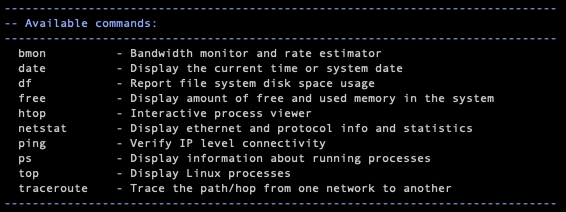
Thanks to
- Victor Wong for you comment in this StackOverflow discussion
- my evoseed team


